> For the complete documentation index, see [llms.txt](https://docs.eduplex.eu/llms.txt). Markdown versions of documentation pages are available by appending `.md` to page URLs; this page is available as [Markdown](https://docs.eduplex.eu/opensearch/readme.md).
# Install cluster
## Opensearch
### Getting started
We are providing a customized [helm](https://helm.sh/docs/topics/charts/) script, in the directory `helm-deployment`, to allow easier deployment of [OpenSearch](https://opensearch.org/) in Kubernetes.
First, create the namespace for the deployment, in this example `ctk-opensearch` is going to be used.
#### 1. Deploying OpenSearch cluster
Keep in mind OpenSearch can be deployed directly in AWS OpenSearch service using CloudFormation.
The following instructions explain how to deploy OpenSearch in a Kubernetes cluster using helm charts:
1. Make sure the namespace is already created or create it with `kubectl create namespace ctk-opensearch`
2. Customize the **domains** from `ingress.host` within the script `opensearch.sh` (and make sure the DNS setup of those domains is pointing to the load balancer of the Kubernetes cluster)
3. Add OpenSearch helm repository `helm repo add opensearch https://opensearch-project.github.io/helm-charts/`
4. Enable `plugins.security.ssl.http` and **uncomment the lines with the certificates** in the section `opensearch.yml` from the file `opensearch-values.yaml` (ssl needs to be enabled in order to run the security script later on) Important values like `persistence.size` (the size of storage volumes) should also be customized from the file `opensearch-values.yaml`
5. **Run the script** `opensearch.sh`
This should create pods `opensearch-cluster-master-x`. Testing the pods from within the same pods is easy with curl and the default credentials (admin admin):
```
curl -XGET http://localhost:9200 -u 'admin:admin'
```
Testing from anywhere in the internet should be also possible using the customized **domain** (possible with CURL or directly via the [browser](https://search.eduplex.eu)).
```
curl -XGET https://search.eduplex.eu -u 'admin:admin'
```
#### 2. Customize default admin password in static files (Optional)
The first time the cluster is deployed, the default credentials should be changed. Future re-deployments on the same Kubernetes cluster will keep the same credentials, since this data is persistent even after namespace deletion.
This **step is not needed** if you want to proceed with the password already stored in the file `.env.opensearch-edupl.env`.
The hash in the file `helm-deployment/configMaps/internal_users.yml` (configured as **extraVolumeMounts** in the file `opensearch-values.yaml`) should be edited to change default passwords according to the [docs](https://opensearch.org/docs/latest/security/configuration/yaml/#internal_usersyml).
The password stored in this file should be hashed. A [hash tool](https://github.com/opendistro-for-elasticsearch/security/blob/main/tools/hash.sh) is located in the container image.
To run this tool, log-in into one of the pods from opensearch-cluster and run the script `/usr/share/opensearch/plugins/opensearch-security/tools/hash.sh -p aXr1x3k3VCqI5bu`
Copy the hashed password from the output of the tool and update the hash `internal_users.yml` with this hash.
The file `opensearch-dashboards-edu-secret.yaml` should also be updated including the new password, otherwise the connection between opensearch-dashboards (a.k.a Kibana) and the search endpoint will not work.
1. Change the password from file `.env.opensearch-edupl.env`
2. Run the command to generate the secret and seal it with [kubeseal](https://github.com/bitnami-labs/sealed-secrets). The command to generate the sealed secrets is available in the script file `opensearch.sh`, this command is starting with `#++` (because it does need to be executed only if the credentials need to be changed or a new Kubernetes cluster is used, an encrypted version of the secret file is stored in this repository)
Totally delete all deployments (the easiest way to do this is by removing the namespace and creating it again).
```
kubectl delete namespace ctk-opensearch
kubectl create namespace ctk-opensearch
```
Run `opensearch.sh` script again to **deploy OpenSearch**.
#### 3. Deploying OpenSearch cluster with new password
Wait a few minutes until OpenSearch is deployed
Log-in into the pod.
Optionally, check if the `internal_users` file was properly updated and using the correct hash.
```
head -n40 /usr/share/opensearch/config/opensearch-security/internal_users.yml
```
Then run the following script in order to update the passwords properly making them persistent (if this script is not executed, the password will not be updated):
```
/usr/share/opensearch/plugins/opensearch-security/tools/securityadmin.sh -cacert /usr/share/opensearch/config/root-ca.pem -cert /usr/share/opensearch/config/kirk.pem -key /usr/share/opensearch/config/kirk-key.pem -cd /usr/share/opensearch/config/opensearch-security/
```
Once finished successfully, the connection can be tested using insecure https connection:
```
curl -XGET --insecure https://localhost:9200 -u 'admin:aXr1x3k3VCqI5bu'
curl -XGET --insecure https://localhost:9200 -u 'admin:teoperro2023!'
curl -XGET --insecure https://localhost:9200 -u 'admin:admin'
curl -XGET http://localhost:9200 -u 'admin:aXr1x3k3VCqI5bu'
curl -XGET http://localhost:9200 -u 'admin:teoperro2023!'
curl -XGET http://localhost:9200 -u 'admin:admin'
```
The ssl certificate in production, will be handled by nginx-ingress controller and generated automatically using LetsEncrypt, for this reason, https inside the private network is not needed.
Revert the changes in `plugins.security.ssl.http` in order to disable ssl certificate and **re-deploy OpenSearch** again using the script.
After a few minutes, when the deployment is finished, testing the access via the [browser](https://search.eduplex.eu) or Curl using the newly changed **admin** account and **password** should be working.
The connection with OpenSearch dashboards should be working properly on the configured domain.
### Create new users
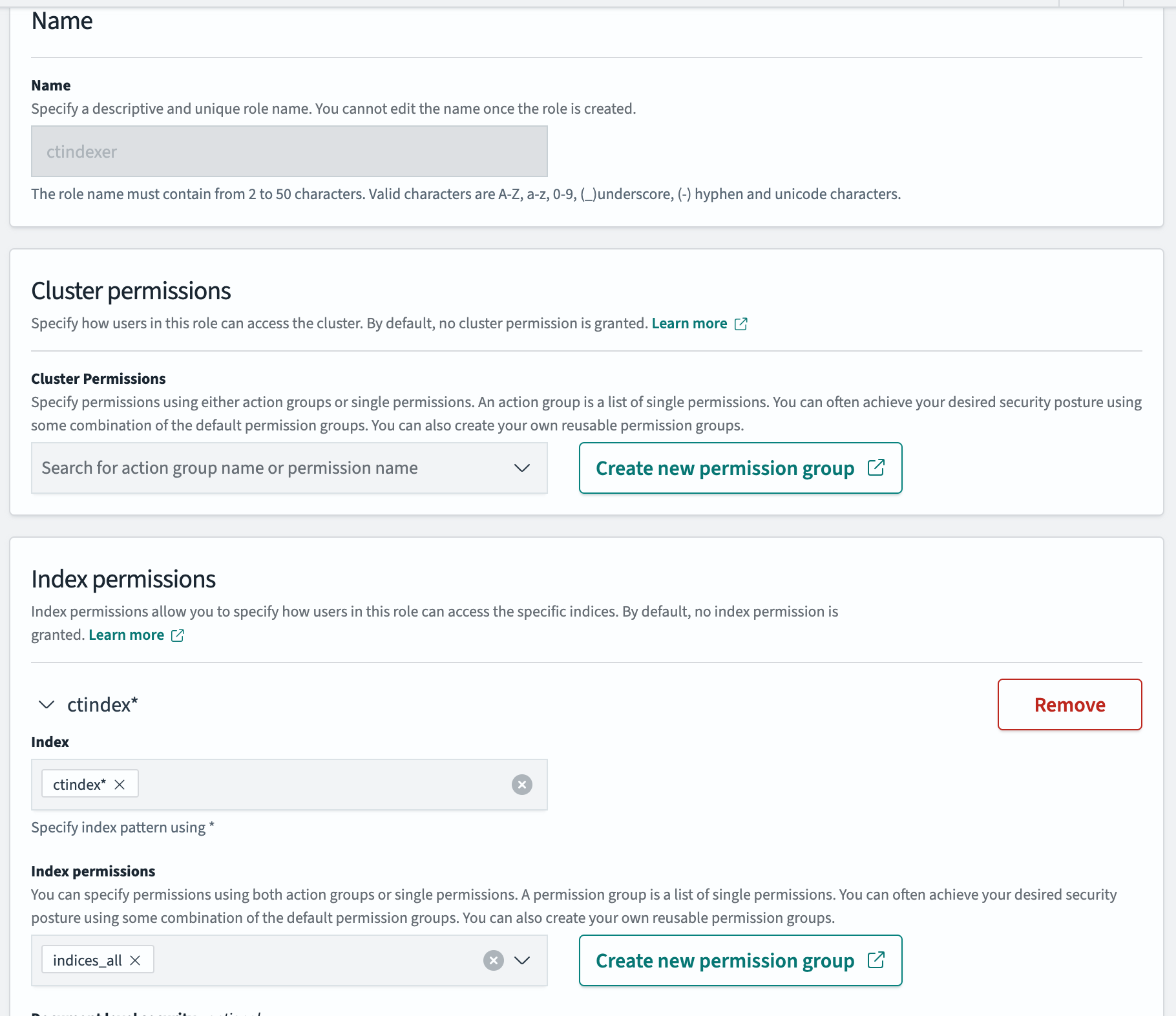
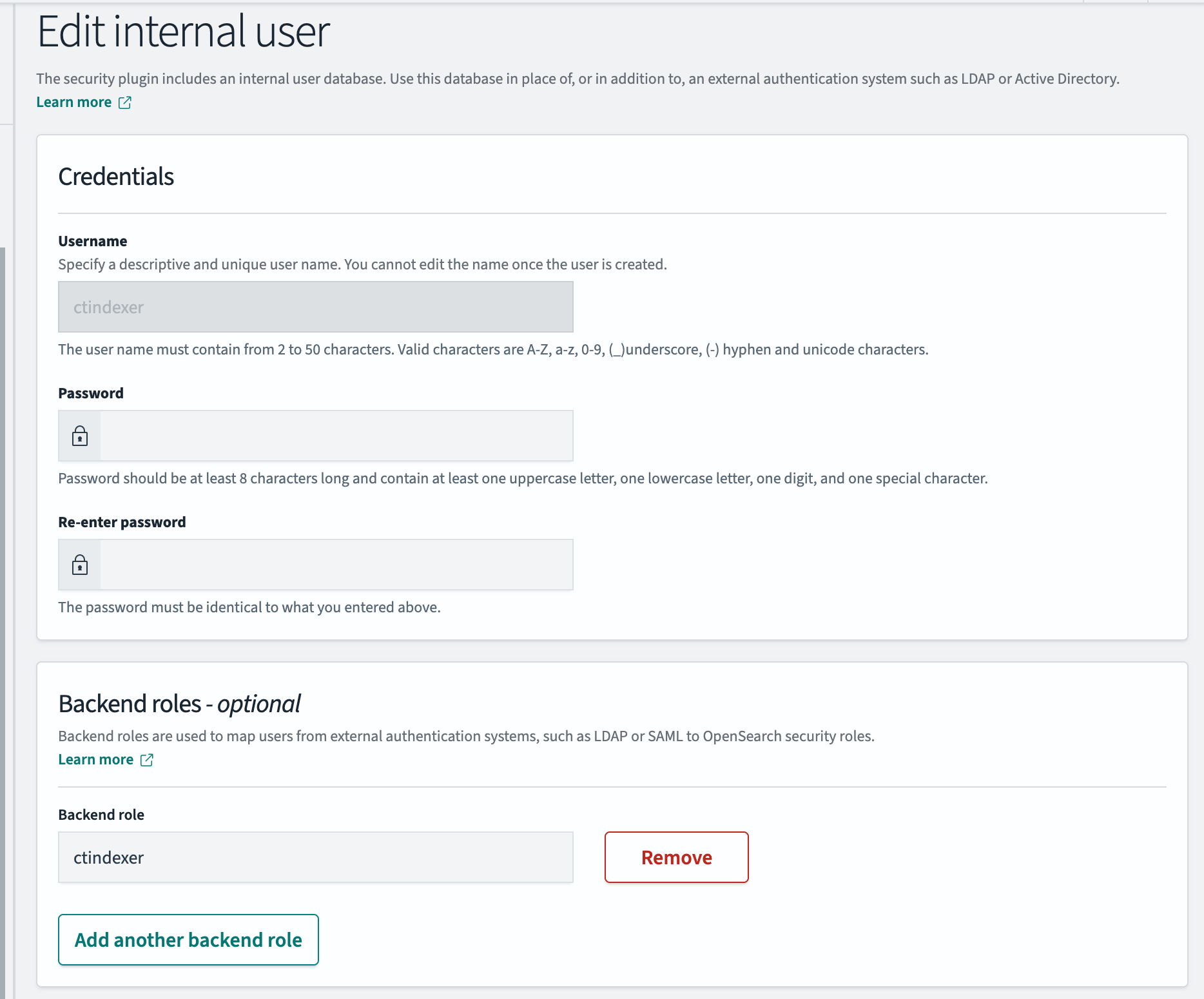
Following the [docs](https://opensearch.org/docs/latest/security/access-control/users-roles/#opensearch-dashboards), open OpenSearch Dashboards domain and go to Security > Internal Users and [Create internal user](https://adminsearch.eduplex.eu/app/security-dashboards-plugin#/users/create). Remember to select correct roles (for example a role to read only from index and another role to update documents to the index).
To create role with index permisions in a certain index go to
Management->Security->Roles->Create role
Specify Index and index permissions
Create new user under Management->Security->Internal users
Once both user and role are created, assign the existing user to the role using the tab **Mapped users** in the role.